Adding Users in IAM
Adding a local management user for Live Platform through IAM includes the following:
|
■
|
Selecting the Live Platform account (entity or tenant) |
|
■
|
Defining the user's email address |
|
■
|
Defining the user's role (permission level) |
Once you add a user, the IAM system automatically sends an email to the user's email address to notify the recipient of being added as a management user for the specific Live Platform account. The recipient then needs to register as a user with Live Platform. For more information, see Creating User Accounts from Registration Invitations.
Before adding a user, make sure that you have the user's correct email address.
|
➢
|
To add a local management user in IAM: |
|
2.
|
From the 'Account' drop-down list, select the Live Platform entity (tenant) to which you want to add the user. |
|
3.
|
Click the Add User and Role button; the Add User Role Mapping dialog box appears: |
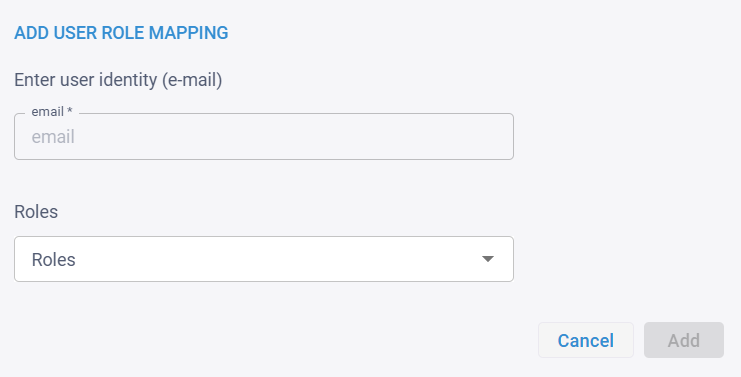
|
4.
|
In the 'email' field, enter the email address of the user. |
|
5.
|
From the 'Roles' drop-down list, select role for the user: |
You can select only one role for a user.
|
6.
|
Click Add; IAM automatically sends a message to the user's email address to invite the user to join (register) and manage the specific Live Platform account. For information on how a user registers for the Live Platform account, see Creating User Accounts from Registration Invitations. |